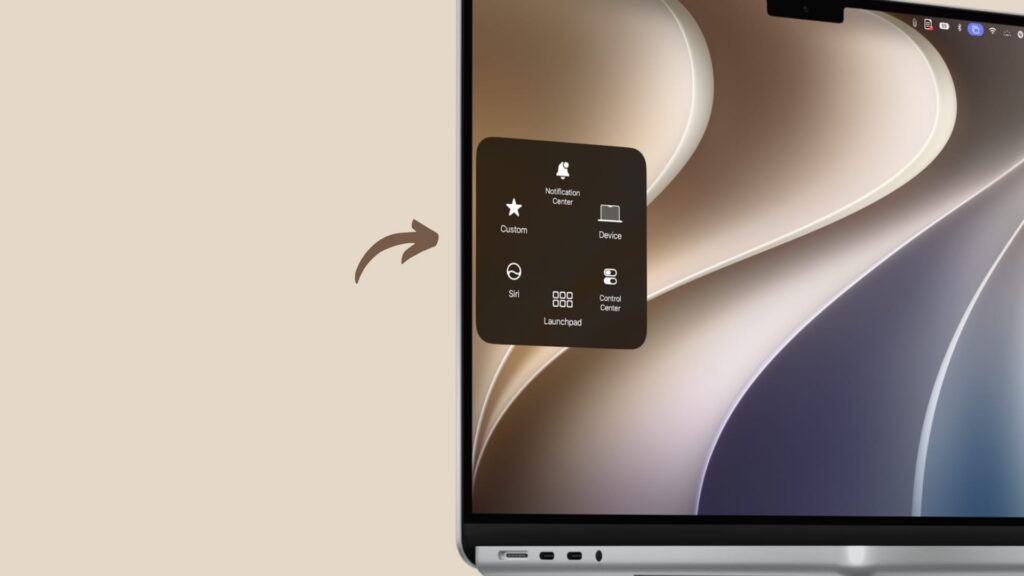
A report published on November 13, 2026, describes how to use AssistiveTouch on Macs running macOS 27 Golden Gate. The floating button provides a menu of actions that can be used with a touchscreen, trackpad or mouse. According to the report, it also appears on both the Mac and iPad screens when using Sidecar.

To turn it on, update the Mac to the latest version of macOS 27 Golden Gate, then open System Settings → Accessibility → Touch and enable AssistiveTouch. Click the floating button to open its menu, or drag it to any screen edge.
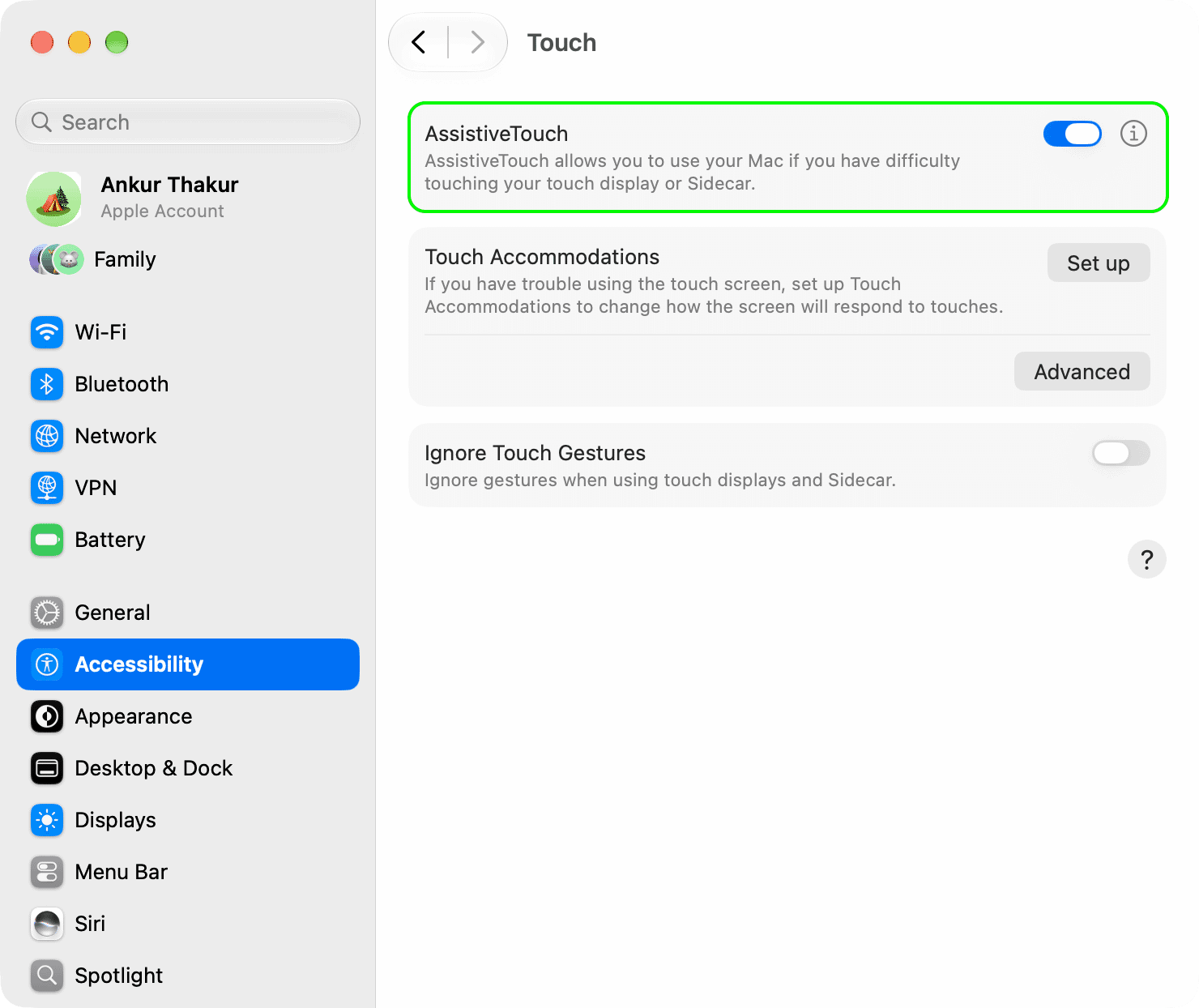
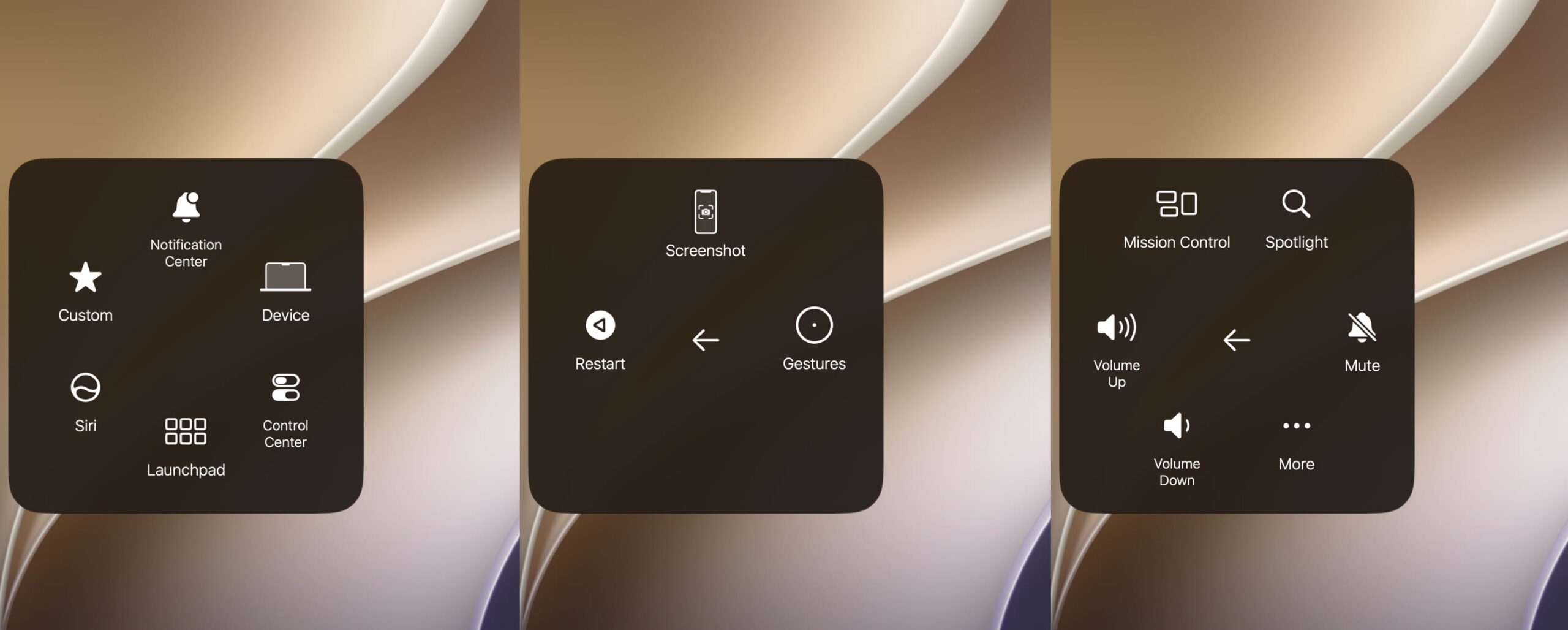
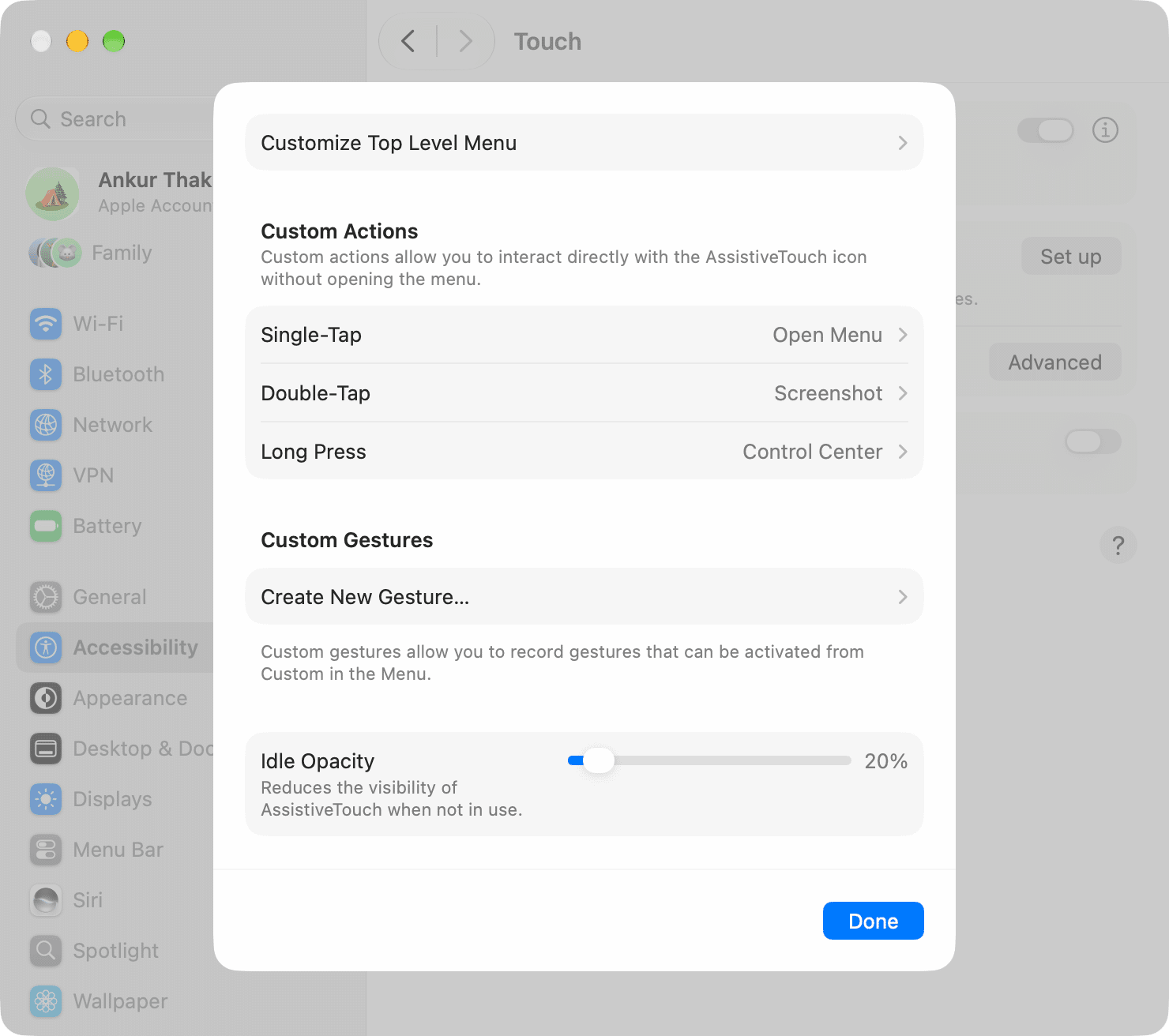
For customization, select the ⓘ icon next to AssistiveTouch in the same settings pane. You can change the single-click, double-click and long-press actions; choose up to eight items for the menu’s first page; create gestures; and adjust the button’s idle opacity. The report says the default double-tap and long-press durations are 0.30 seconds and one second, respectively. Click Done to save changes.
The report notes that, unlike on iPhone and iPad, the AssistiveTouch button cannot be added to the Mac’s Control Center.