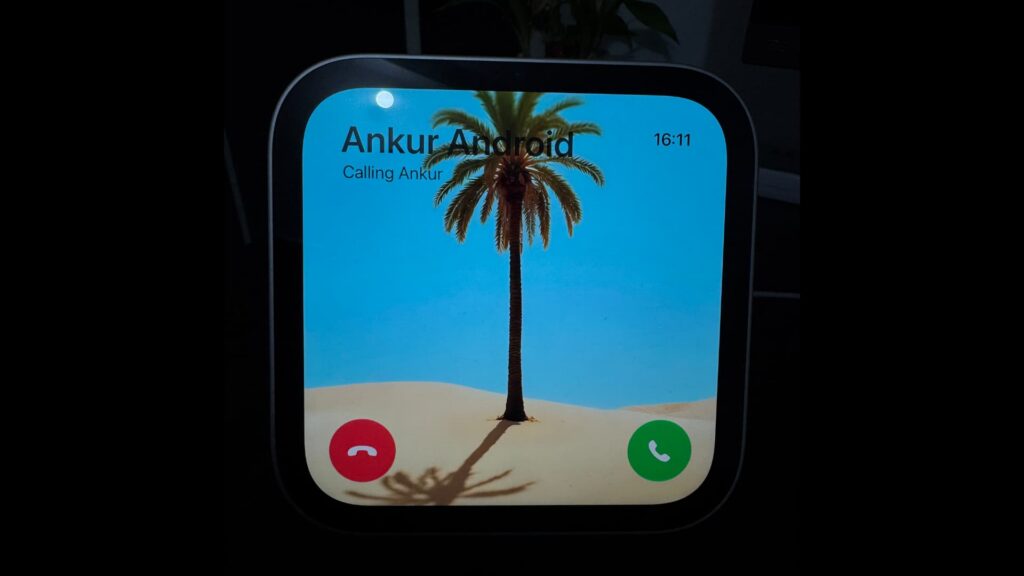
In a guide published on November 20, 2026, iDownloadBlog described how to prevent incoming iPhone calls from appearing on HomeView. The setting may be useful if other people can see the device’s 7-inch screen.
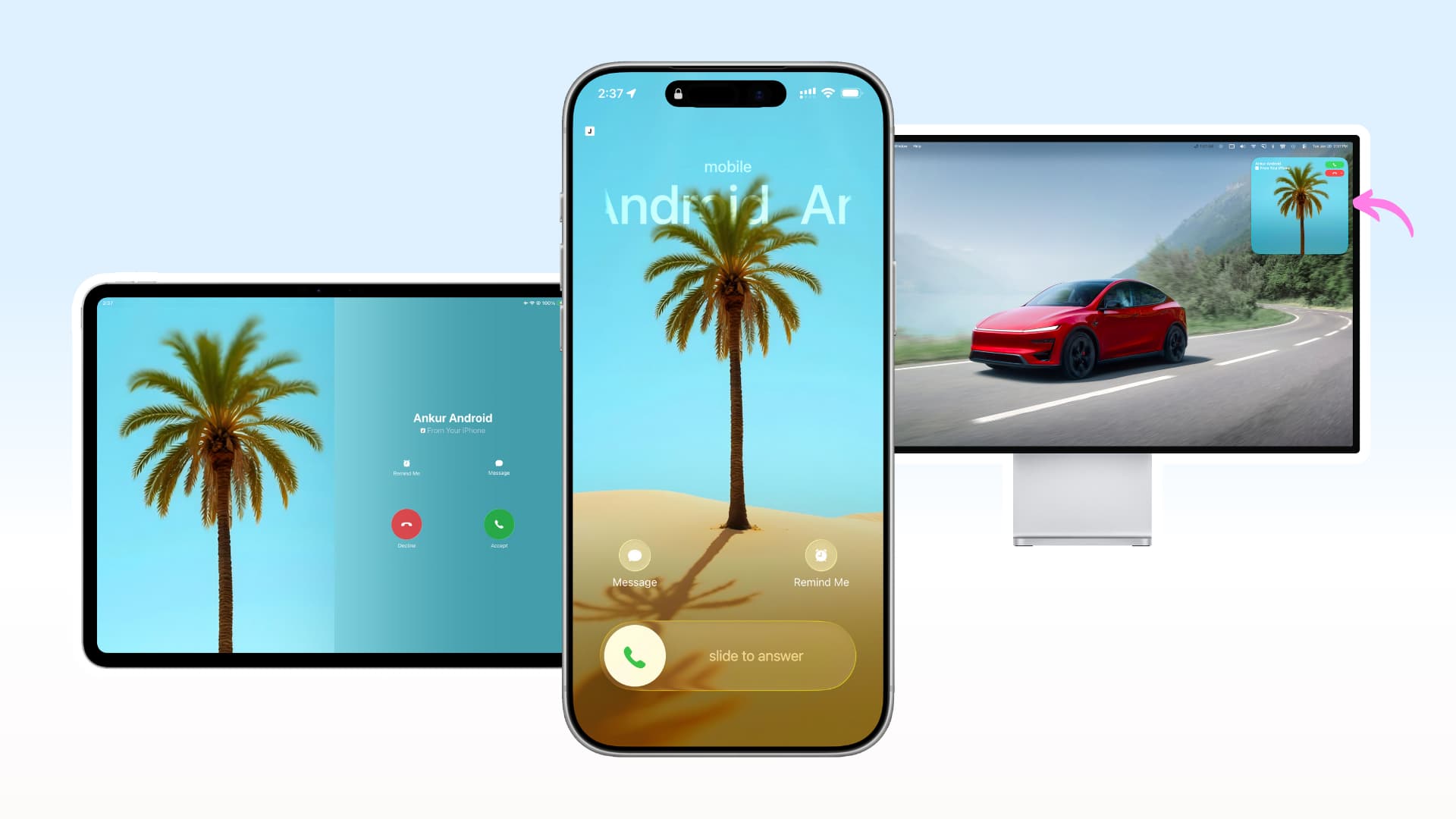
According to the guide, a call appears on HomeView only when the iPhone is nearby and on the same Wi-Fi network, Personal Content is enabled, the user’s profile is selected, and HomeView can detect the user’s face. Even with those conditions, someone standing behind the user could see who is calling.
Turn off incoming calls on HomeView
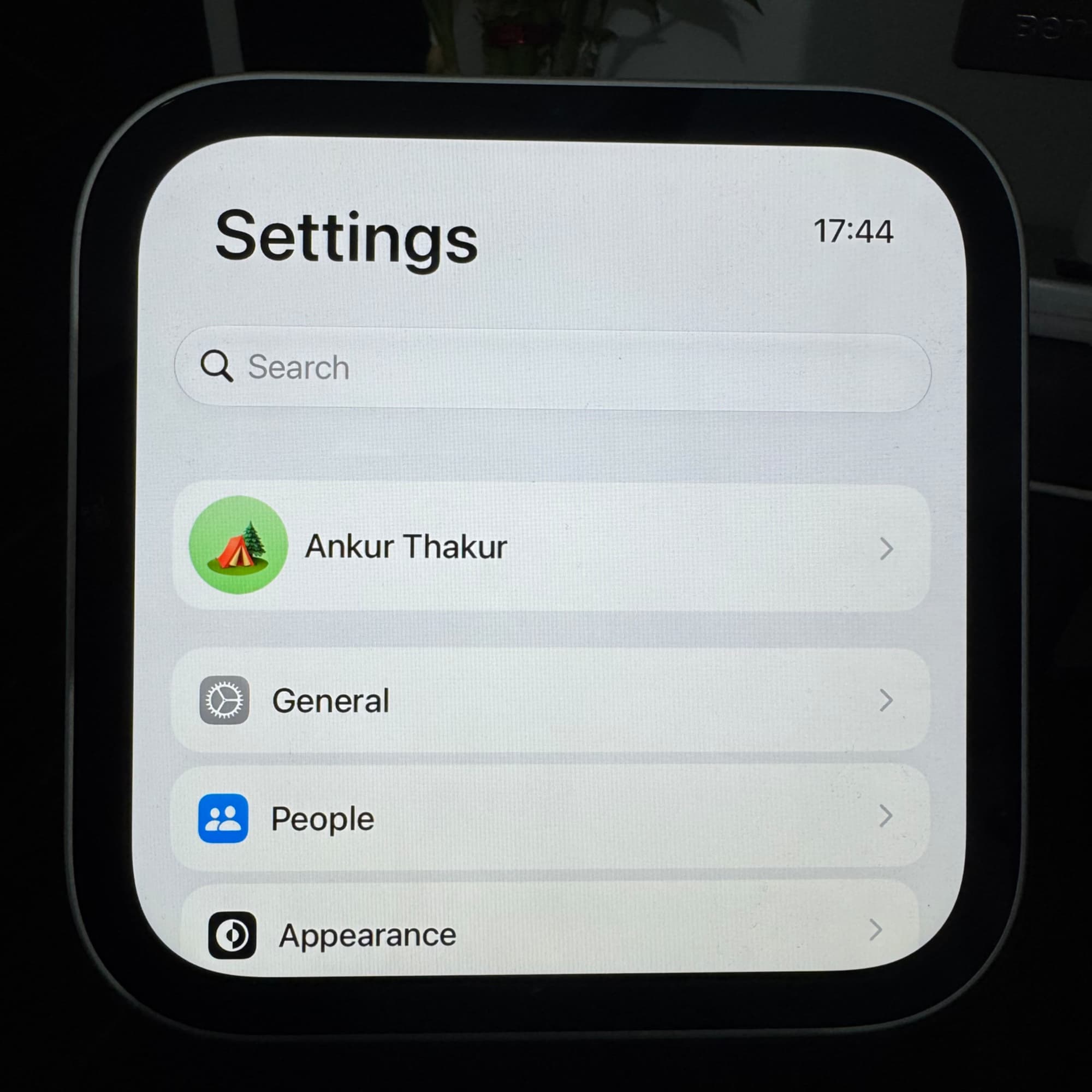
- Swipe up on the HomeView clock face to open the app drawer. Check that your profile icon appears in the top-right corner, then open Settings.
- Tap your name.
- Scroll down and turn off Incoming Calls.
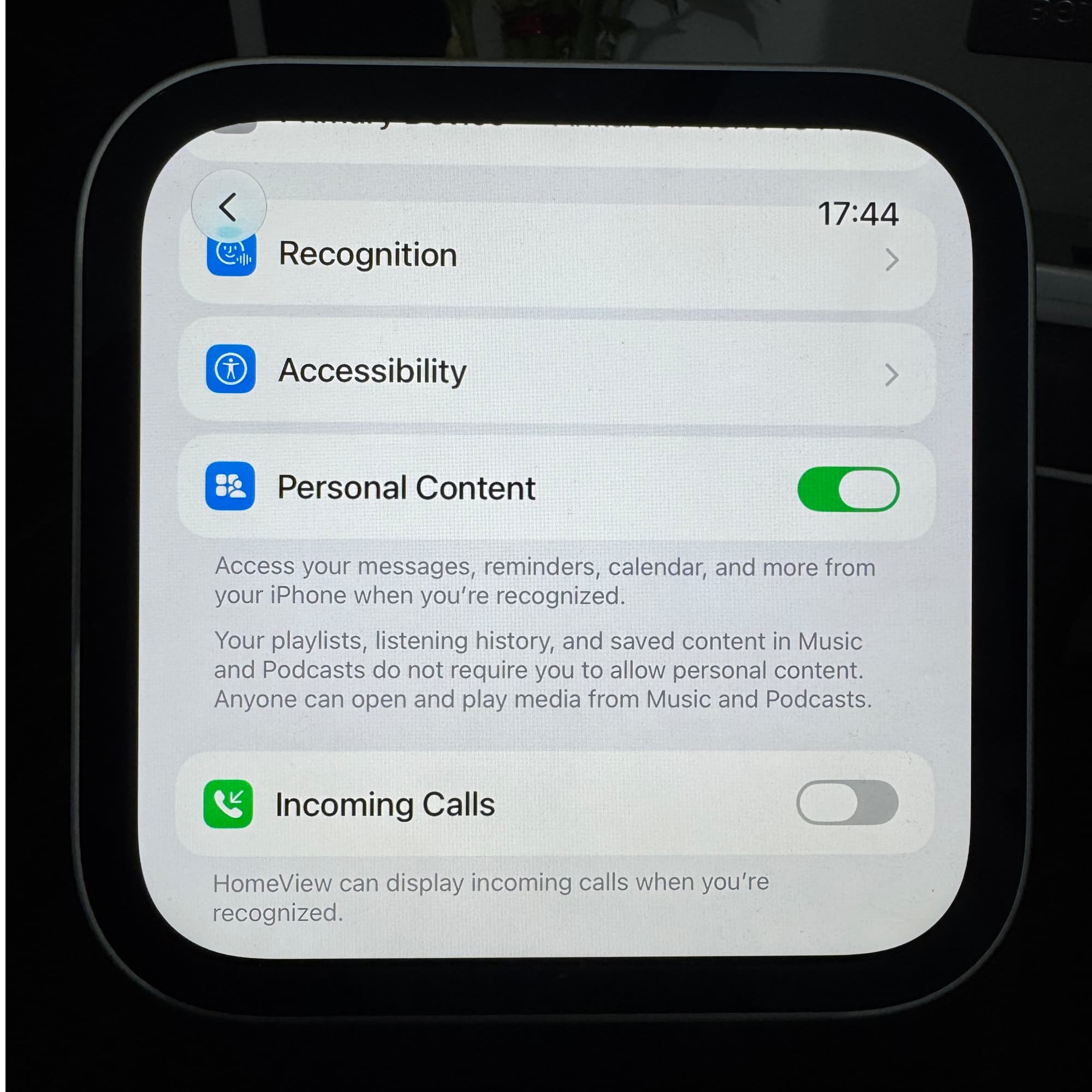
This stops calls appearing on HomeView without changing whether they appear on an iPad, Mac or Apple TV where calling is enabled. The guide says the HomeView setting cannot be managed through the iPhone’s Settings > Apps > Phone > Calls on Other Devices menu.
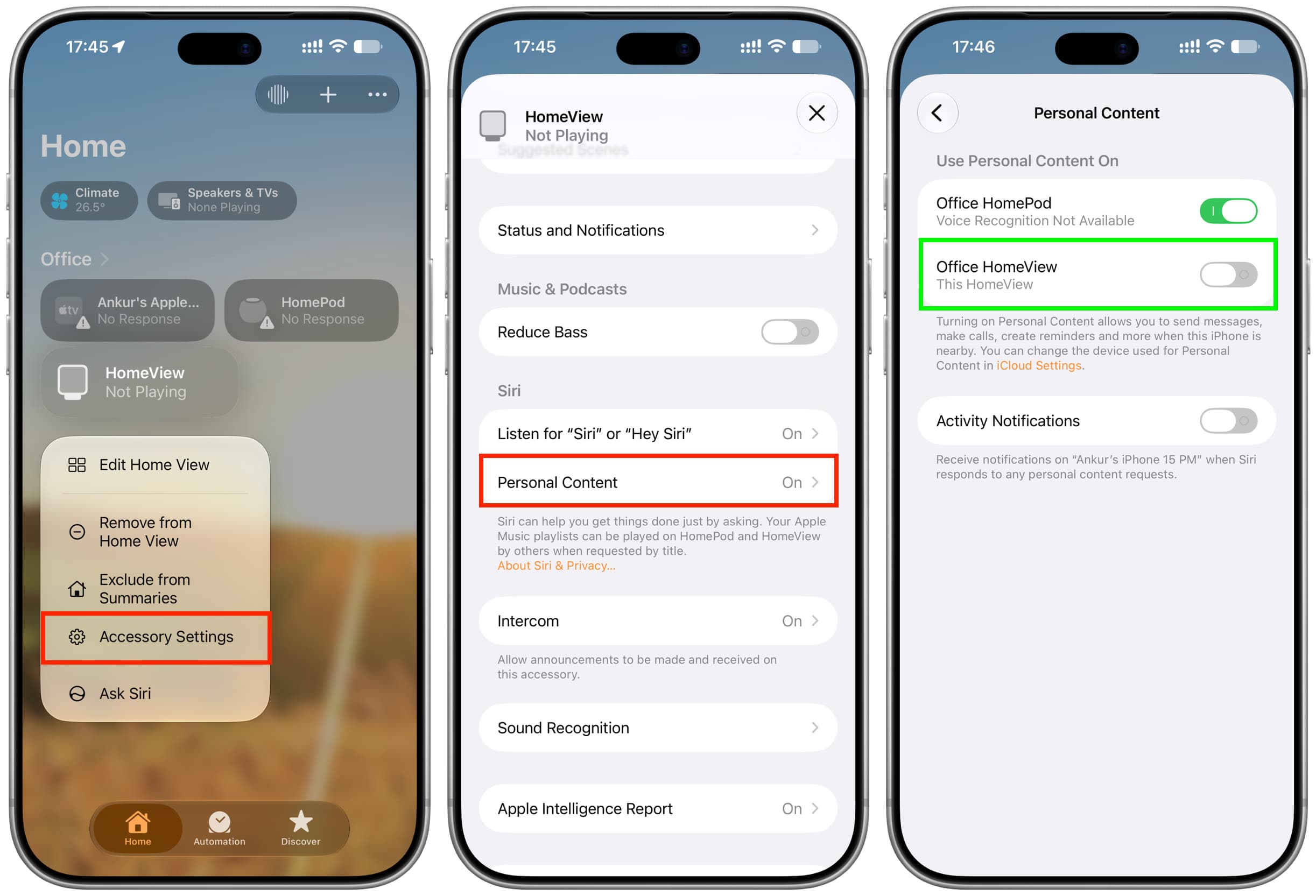
If you cannot access HomeView, the guide suggests turning off Wi-Fi on your iPhone as an immediate workaround. Alternatively, on the iPhone, open the Home app, touch and hold the HomeView tile, select Accessory Settings, tap Personal Content, and turn off the switch for HomeView. According to the guide, the Personal Content change works remotely if both devices have an internet connection, even when they are on different Wi-Fi networks or the iPhone uses cellular data. Turning off Personal Content also affects other personal items, such as messages and calendar events, that use the feature.