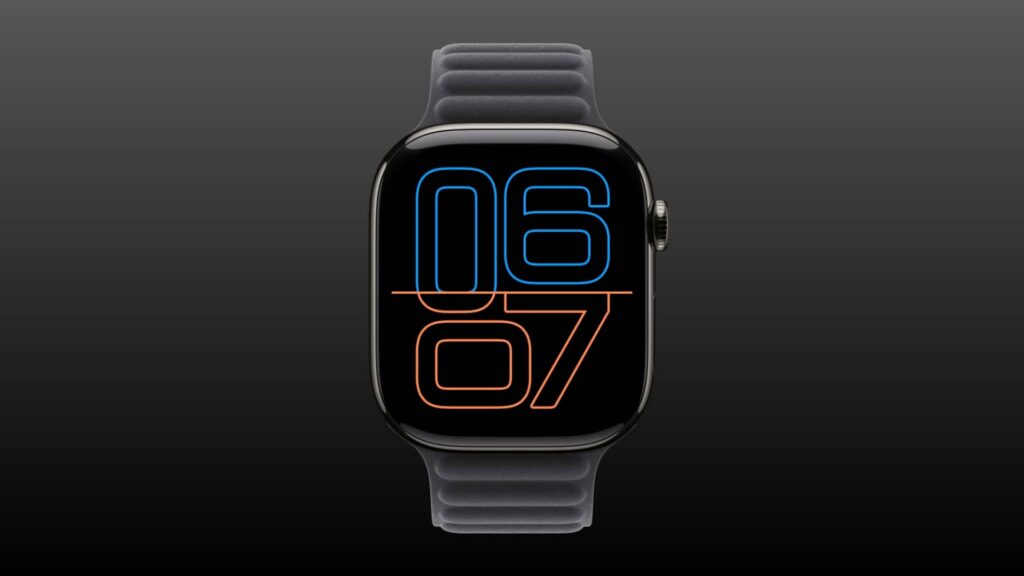
Apple Watch’s Always On display keeps the watch face visible when your wrist is down. If you would rather have the screen go dark, you can turn it off; if you want to keep it, you can limit what appears while the watch is idle. These steps reflect the settings described in a November 10, 2026 report.
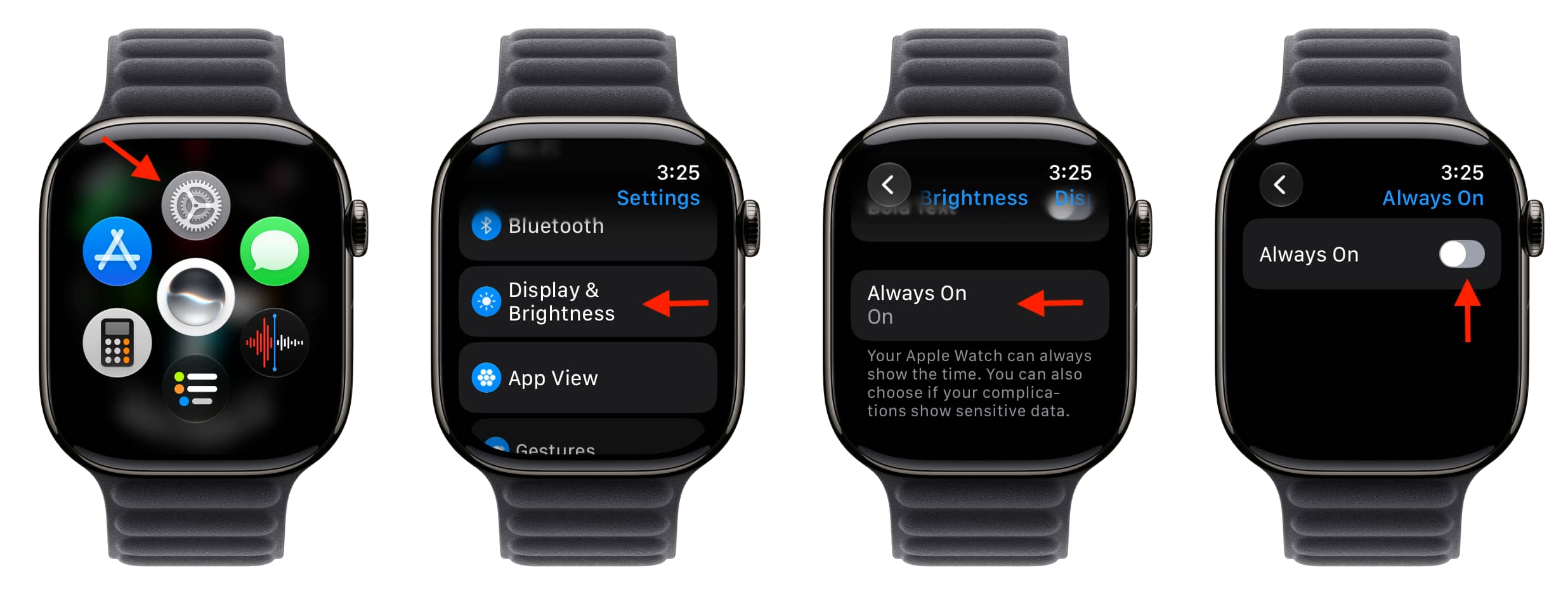
Turn Always On off
On your Apple Watch, open Settings → Display & Brightness → Always On, then turn off the Always On switch. The screen will go black when you lower your wrist. For a temporary change, you can enable Low Power Mode or Theater Mode instead.
Turning Always On off may help extend battery life. It can also keep an active voice recording, timer or other Live Activity from appearing on the lowered-wrist display.
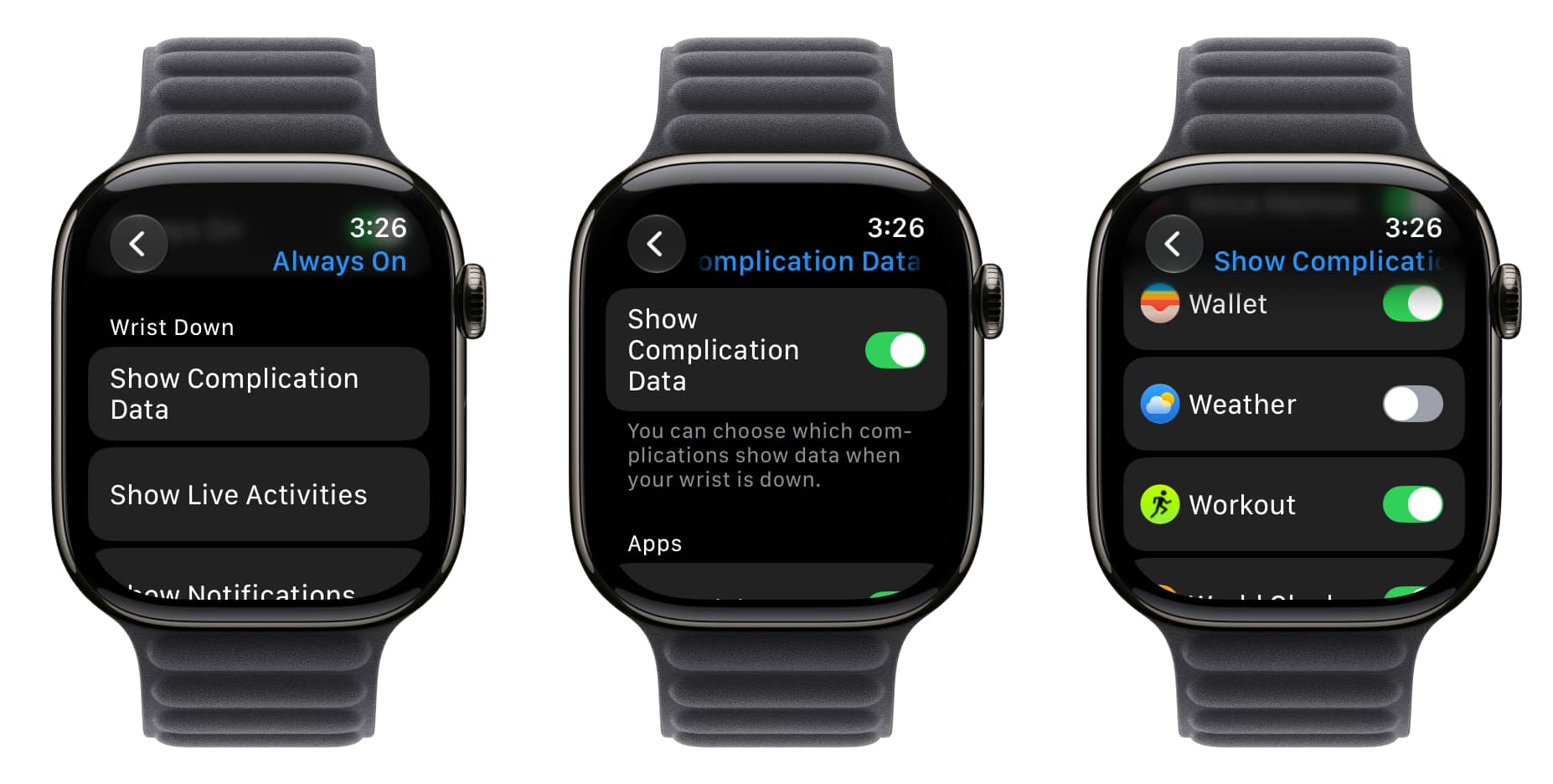
Choose what appears when your wrist is down
To keep Always On enabled but limit what it shows, return to Settings → Display & Brightness → Always On. Under Wrist Down, choose Show Complication Data, Live Activities, Notifications or Apps. You can switch off a whole category or restrict individual apps within it.
For example, turning off Weather under complication data leaves its complication on the watch face but hides the temperature number while your wrist is down. The temperature appears again when you raise your wrist or wake the display. Turning off WhatsApp under notifications hides its notification content on the Always On display; notifications still appear when the watch is fully awake.
According to Apple, the time and watch-face complications generally update once a minute on the Always On display. Live-data complications such as Compass and Noise are not active there, while Stopwatch and Timer complications round their displayed information to the next minute. On newer models, including Series 10 and Ultra 3, some elements can update once a second.