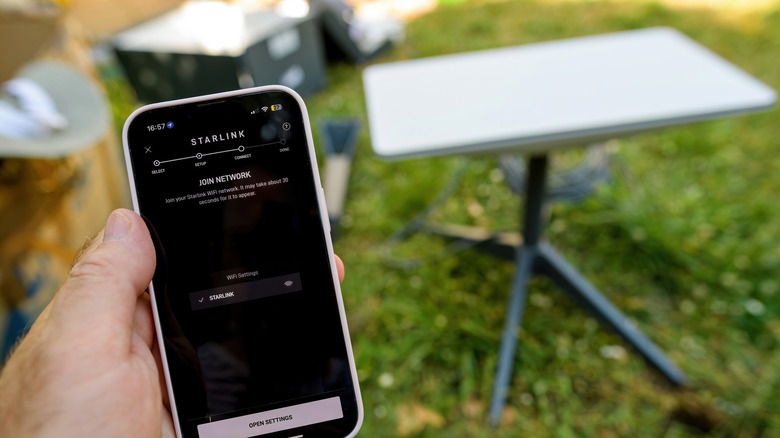
A laptop near your Starlink router may get a faster Wi-Fi connection on 5 GHz, while a smart bulb may work only on 2.4 GHz. By default, both bands share a network name, and compatible devices can switch between them automatically. Splitting the bands lets you choose which one each device uses. It changes the Wi-Fi connection to the router, not the satellite link.
When a split can help
The 5 GHz band supports higher speeds and has more non-overlapping channels than 2.4 GHz, which can mean less interference. If a nearby laptop is using a crowded 2.4 GHz band, moving it to 5 GHz may improve its speed. That also leaves less traffic on 2.4 GHz for devices that need it, including many smart bulbs. The gain depends on your router, the devices connected to it and how far away they are.
To try it, select Add Network in the Starlink app and turn on Split Network. Give the two networks distinct names that include 2.4 and 5 so you can tell them apart when reconnecting devices. Starlink’s bundled routers do not offer a 6 GHz band, including models equipped with Wi-Fi 7.
When one network name works better
Range matters more than peak speed in a distant room. Typical indoor reach is up to 150 feet (45 meters) on 2.4 GHz, compared with 50 to 75 feet (15 to 25 meters) on 5 GHz. The 2.4 GHz signal also passes through walls more readily. A phone that automatically changes bands as you move through the house may need a manual switch if you give the bands separate names.
Devices on the two bands should still be able to communicate after a split, but that does not always work in practice. If a smart-home accessory cannot reach another device on the other band, setup or automations may fail even when both devices can access the internet. If your Wi-Fi already delivers the speed and coverage you need, keeping one network name avoids reassigning devices and preserves automatic band switching.